


As the continuation to my earlier blog post, “Connect MFA Enabled D365 CDS Programamatically”, where we connected to D365 using ClientSecret programmatically, we will learn how we can use Certificates for the same. Certificate-based authentication is a more secure way to achieve S2S (server-to-server) authentication and establishing the connection to D365 Dataverse/CDS.
So, let’s get started.
Step1 : Setup Certificates
We need self-signed or CA-issued certificate to proceed. Either you can generate the certificates as shown below using Azure Key Vault or use the previously generated certificate. I will list down steps to generate the same using Azure Key Vault (self signed)
- Connect to Azure Admin Portal
Login to https://portal.azure.com
Click on Key Vaults
Click on Create
You can either use existing Resource group or create new.
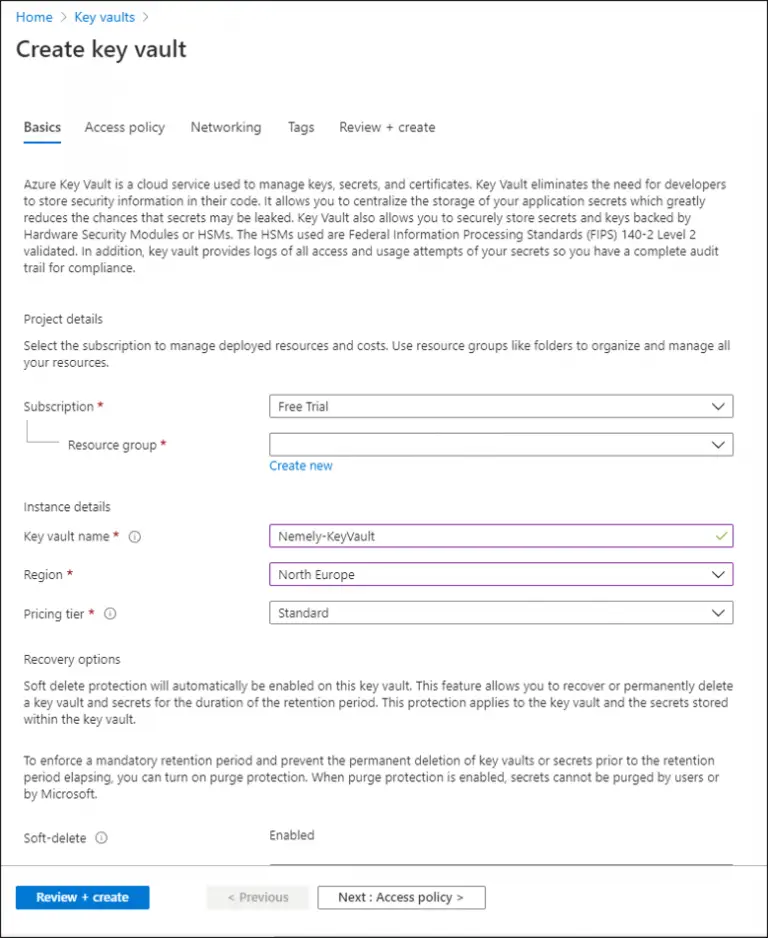
Follow steps and Create new Key Vault.
- Generate Certificate
Click on Certificates under Settings of this newly created Key Vault
Click on Generate/Import. (Generate is to create new certificate, while Import is to import previously created certificate)
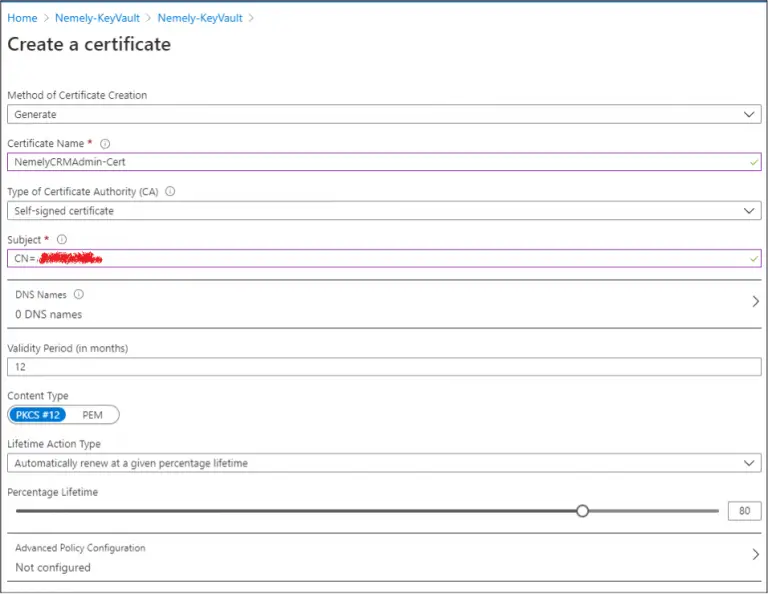
Once the certificate is Enabled, Open the certificate and download it in both the formats (CER as well as PFX/PER format).

Step2: Get Application ID and upload Certificate using Azure Active Directory
- Connect to Azure Admin Portal
Login to https://portal.azure.com
Click on Azure Admin Directory
Click on App Registrations
Click on New registration - Give an appropriate name of your app which is going to connect to D365 CDS programmatically. Click Register.
Copy generated Application ID
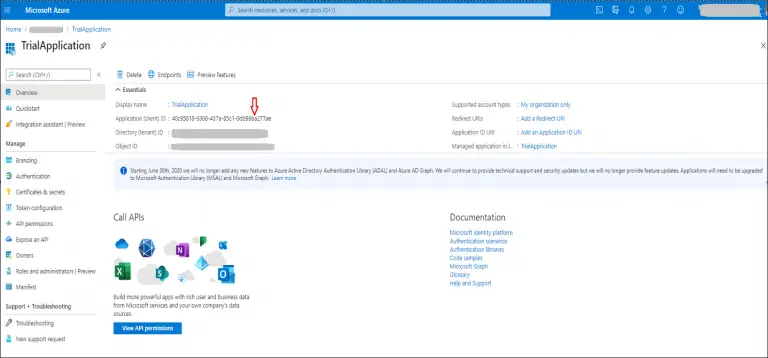
- Now click on Certificates and Secrets for your app.
Click on ‘Upload Certificate’ and upload CER certificate you downloaded from step key vault.
Once added, copy Thumbprint Value.
Step 3: Upload Certificate on Server or on your local certificate store
Import above generated certificate in step 1 to your server or local certificate store. Please use PFX/PEM format cert here. Also, if you are using previously generated certificate, then export that certificate without ‘Private Key’ and then import to your store.
Step 4 : Add Application User in D365 CDS environment
- Login to D365 CDS environment
- Go to Settings -> Security -> Users
- Change the view to ‘Application Users’ and click New. Make sure the form is ‘Application User’ form.
- Add details and Application Id generated in step 2 above.
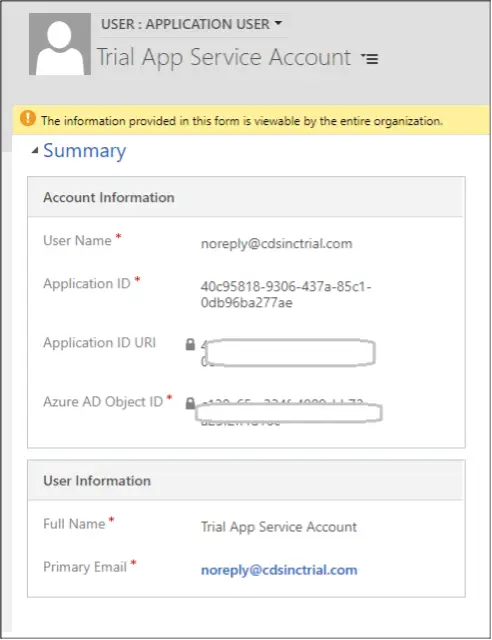
Format
String connectionString = “AuthType=Certificate; url=<your organization URL>; AppID=<your application id>; Thumbprint=<certificate thumbprint>”;
Example
string connectionString = “AuthType=Certificate; url=https://cdsinctrial.crm.dynamics.com/main.aspx; AppID=40c95818-9306-437a-85c1-0db96ba277ae; Thumbprint=416E548D592BD93B2578TE80D72BCA9E055390BB”;
Code Snippet: (Change values as per your organization set up values)
Common Error:
- Error: Microsoft.Powerplatform.Cds.Client.Utils.CdsConnectionException: Failed to connect to Common Data Service —> System.Exception: Failed to locate or read certificate from passed thumbprint. —> System.Exception: Failed to find certificate with thumbprint: XXXXXXXXXXXXXXXXXXXXXX.
- Solution: Check if you have imported the certificate to your local certificate store.
References:
Hope this helps to achieve your goal. Please let us know if you have any questions.